1. Regional Marketing – Estimate Creation
Step 1 of 7 | Performed by: Vendor
Overview: This guide shows how a vendor creates and submits a marketing estimate/request in the Regional Marketing module. It covers filling in header and activity details, adding line items, commission, taxes and advance payment, and submitting the estimate for approval.
Total steps: 20
- Log in and open the Regional Marketing dashboard.
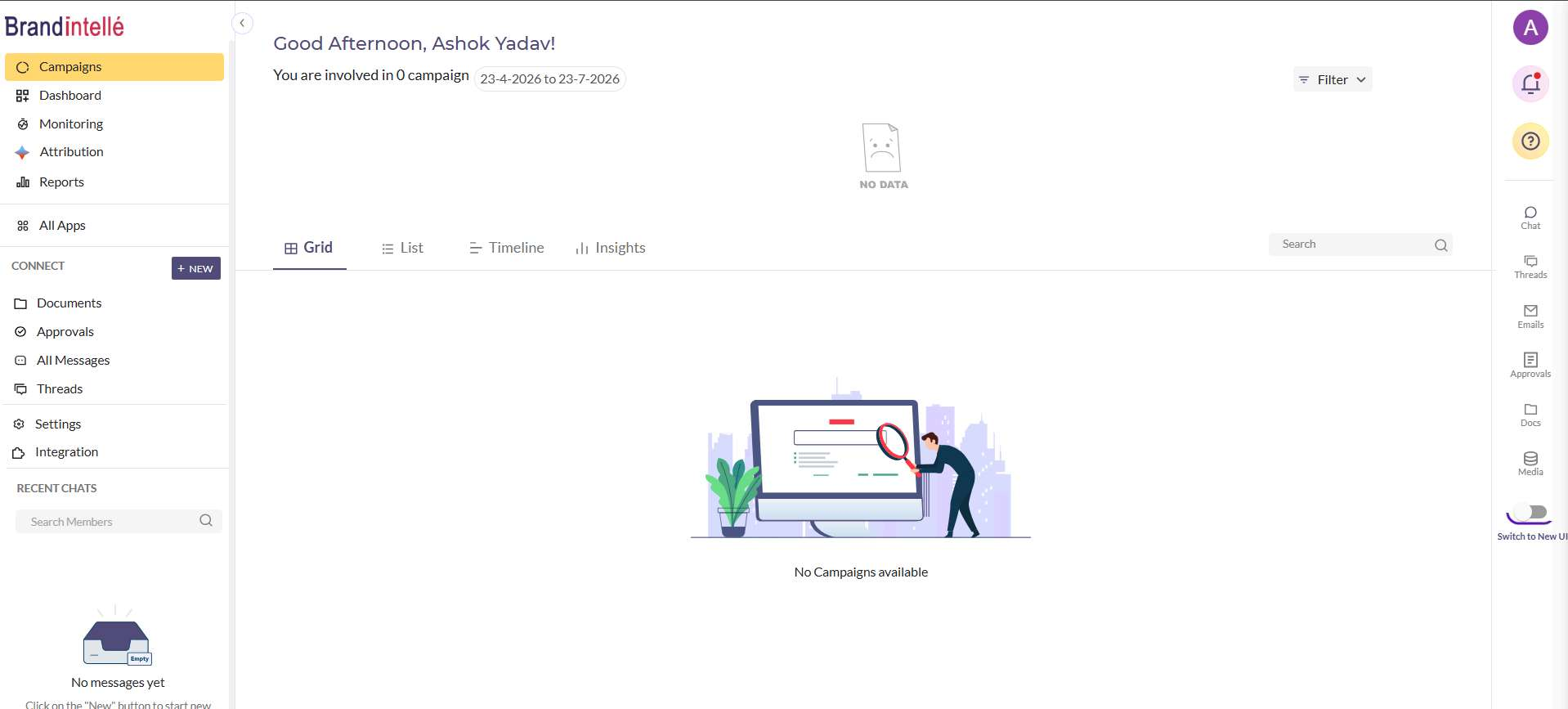
- Open 'All Apps' from the left navigation bar.
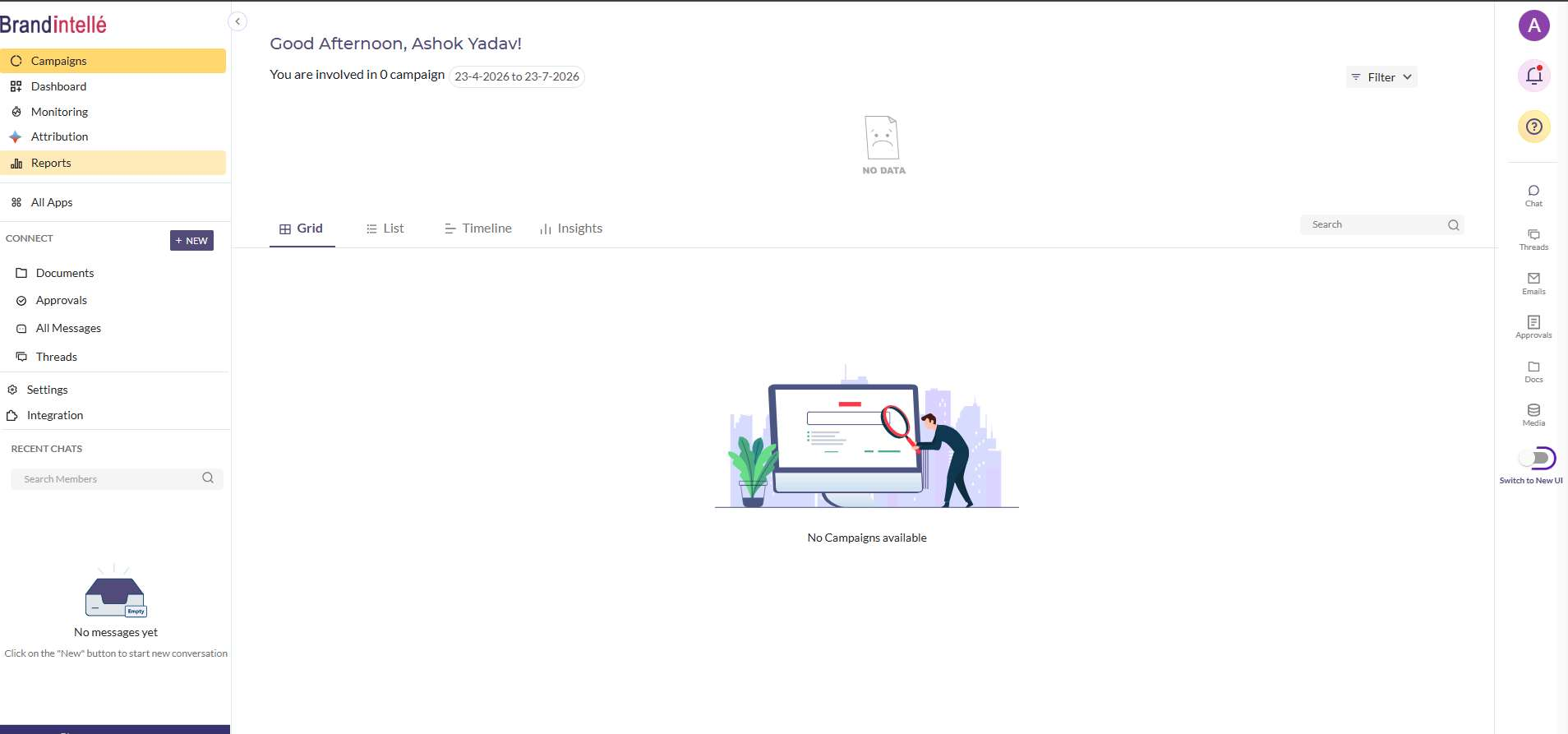
- Open the Regional Marketing module.
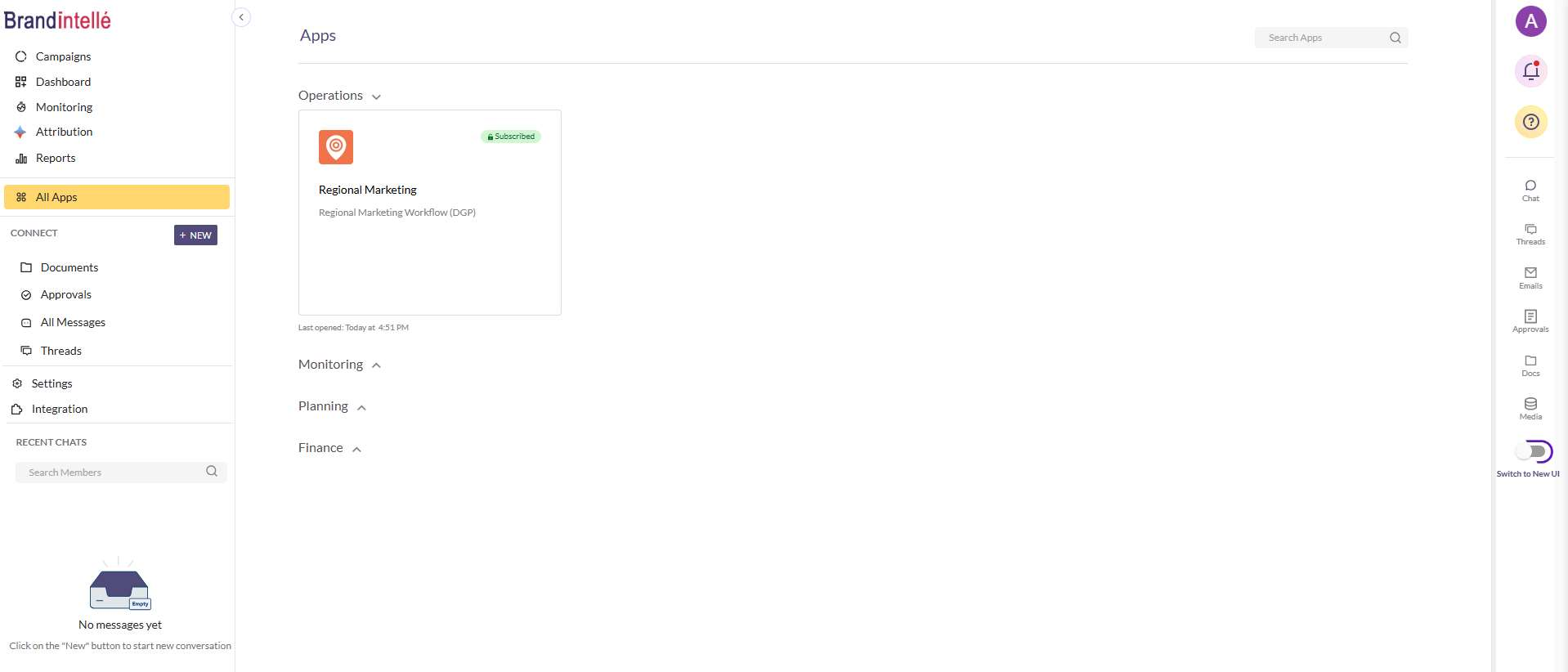
- Click 'Vendor Initiated' under 'New Request' to raise a new estimate.
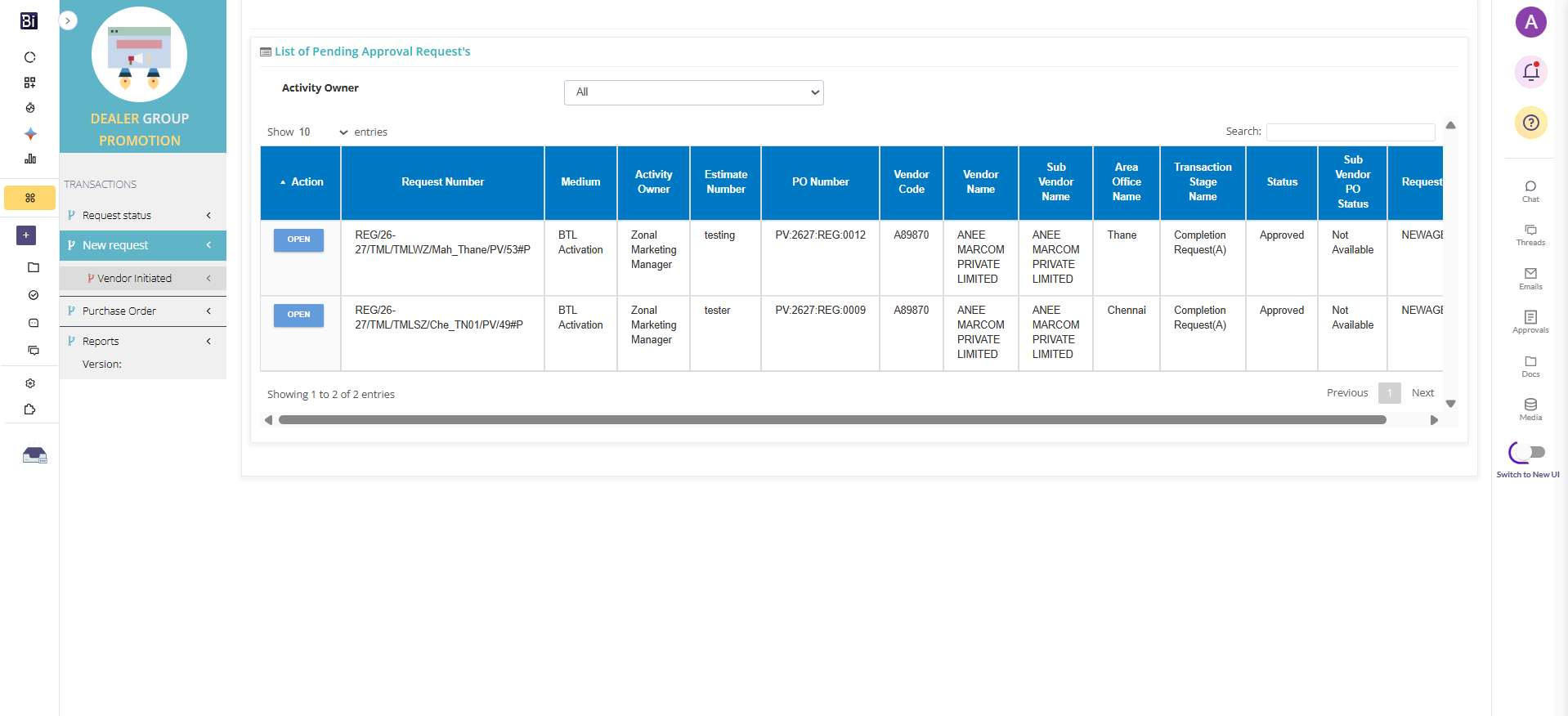
- Go to the 'Header' section and fill in all required details for the activity.
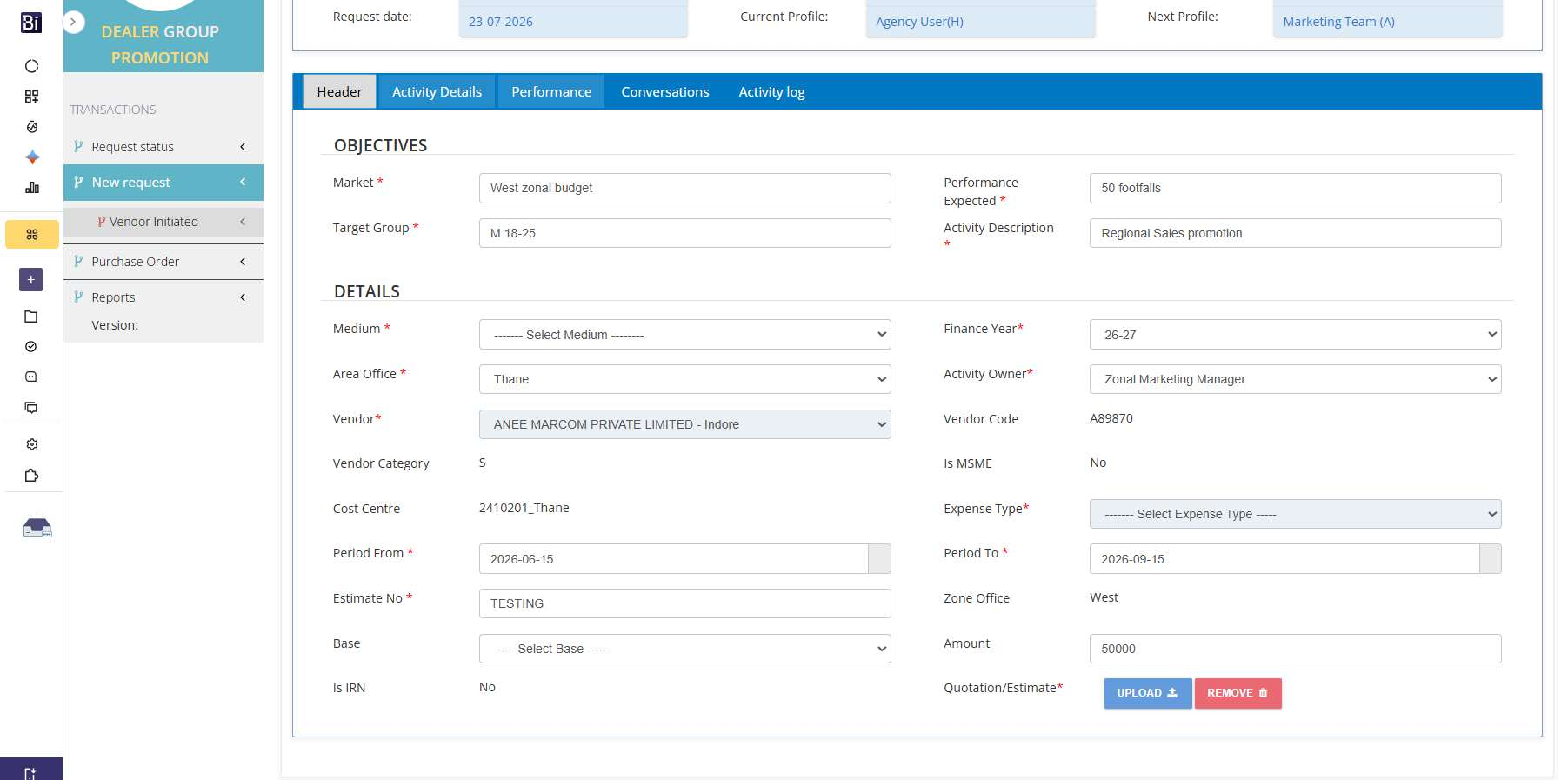
- Attach supporting documents/PDF for the estimate, if any.
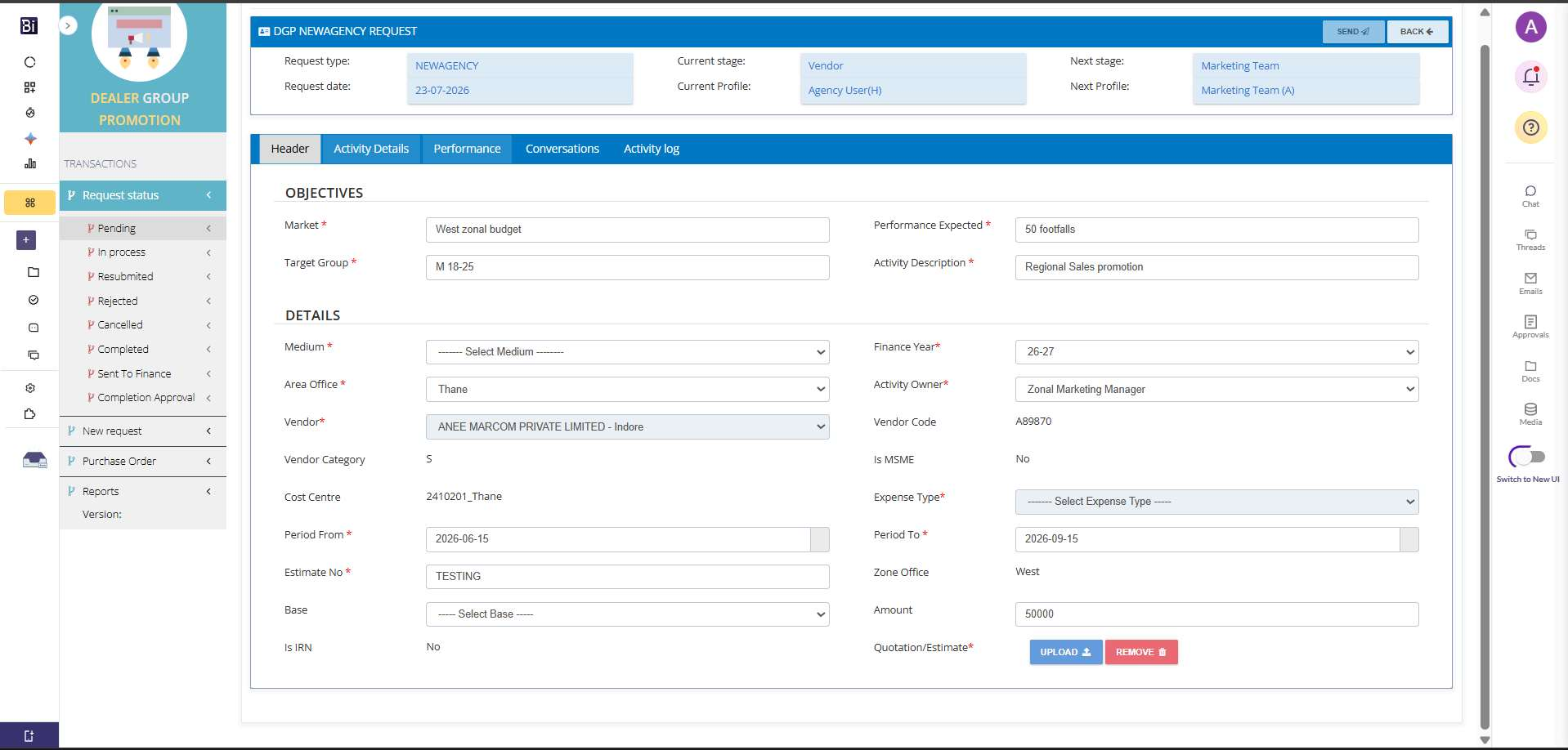
- Move to the 'Activity Details' section.
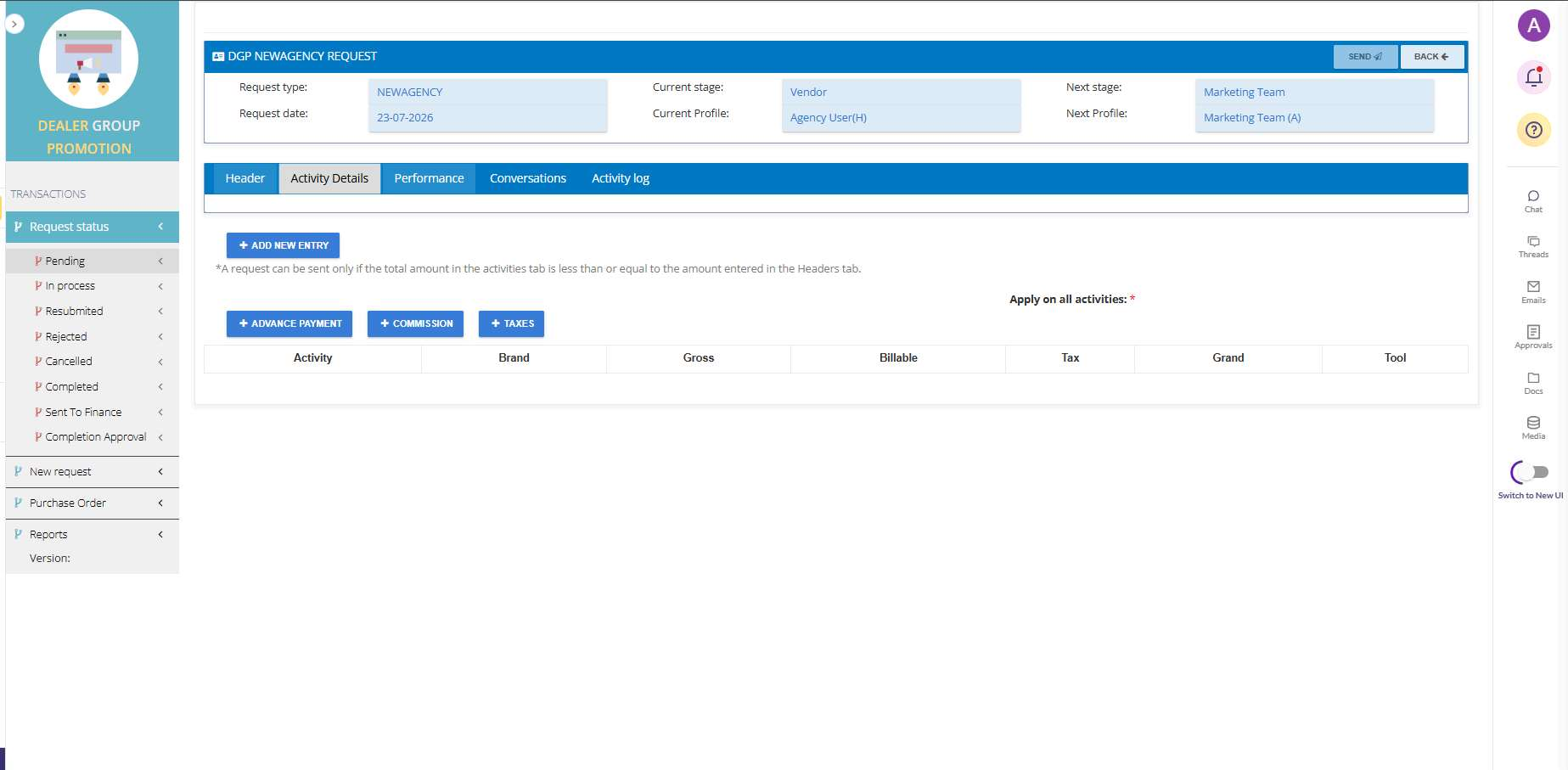
- Click 'Add New Entry' to add activity line items. Fill in all details. Multiple line items can be added.
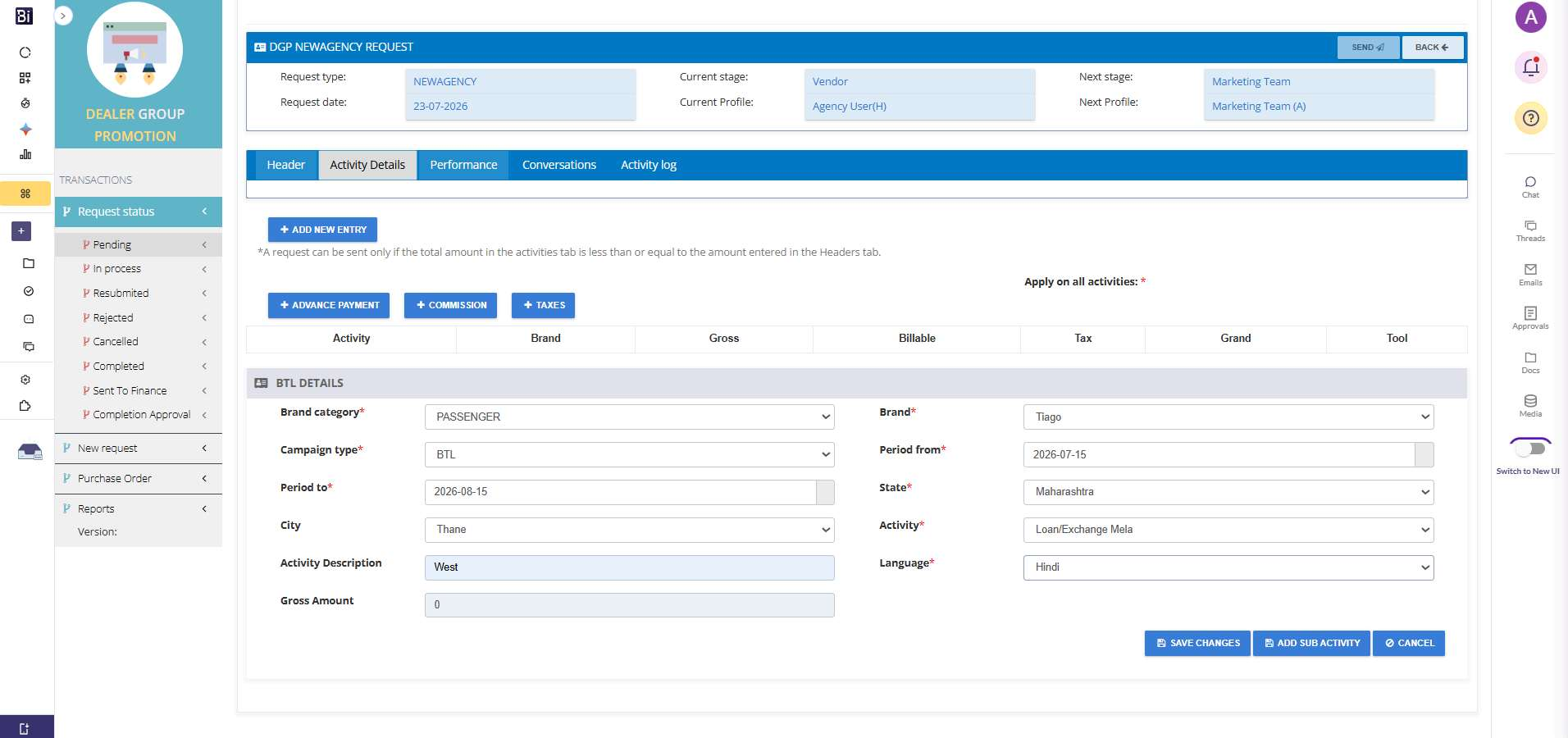
- For any activity added, you can also add 'Sub-Activity' line items.
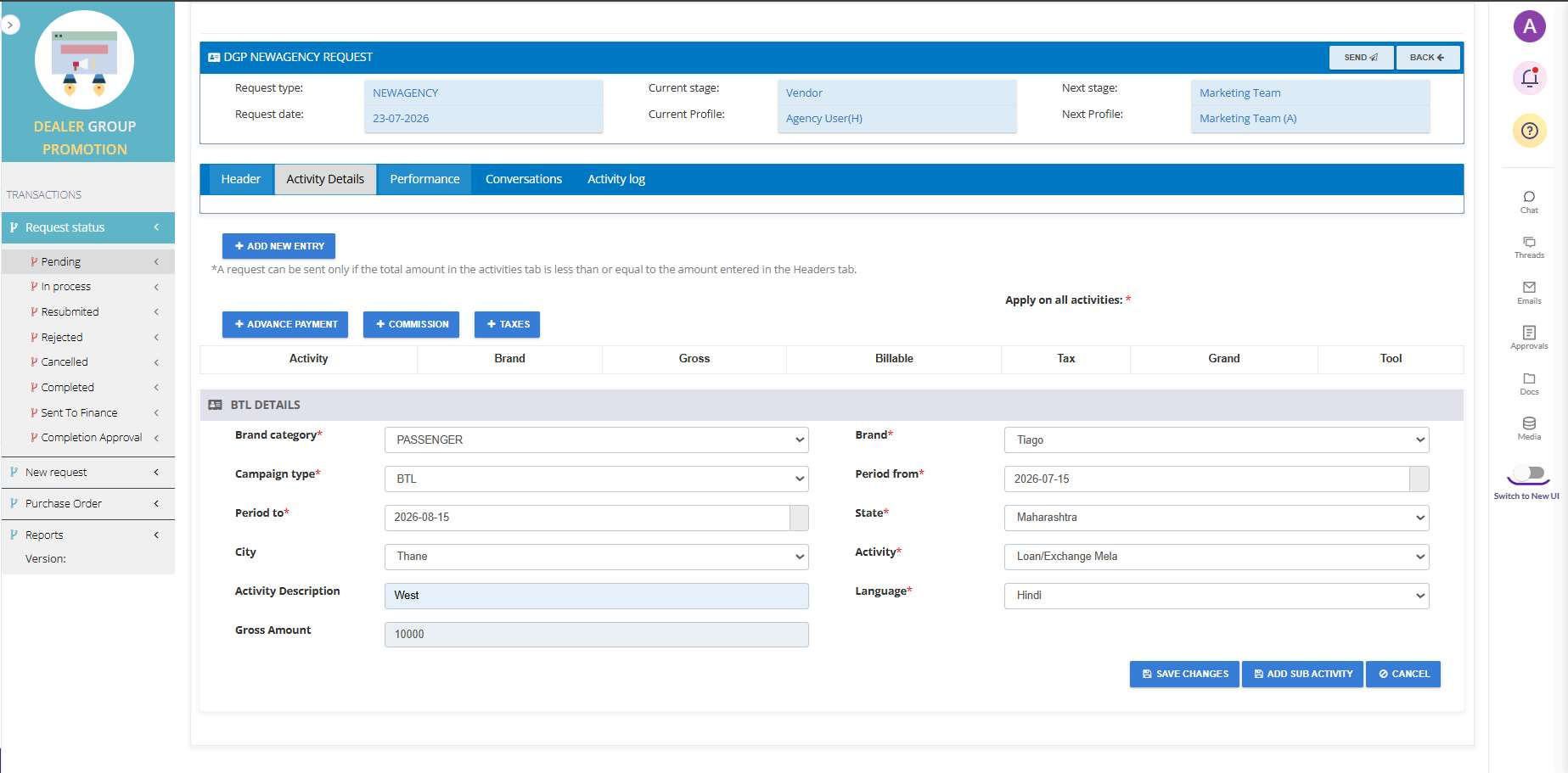
- Fill in the sub-activity details along with Qty and Rate per unit.
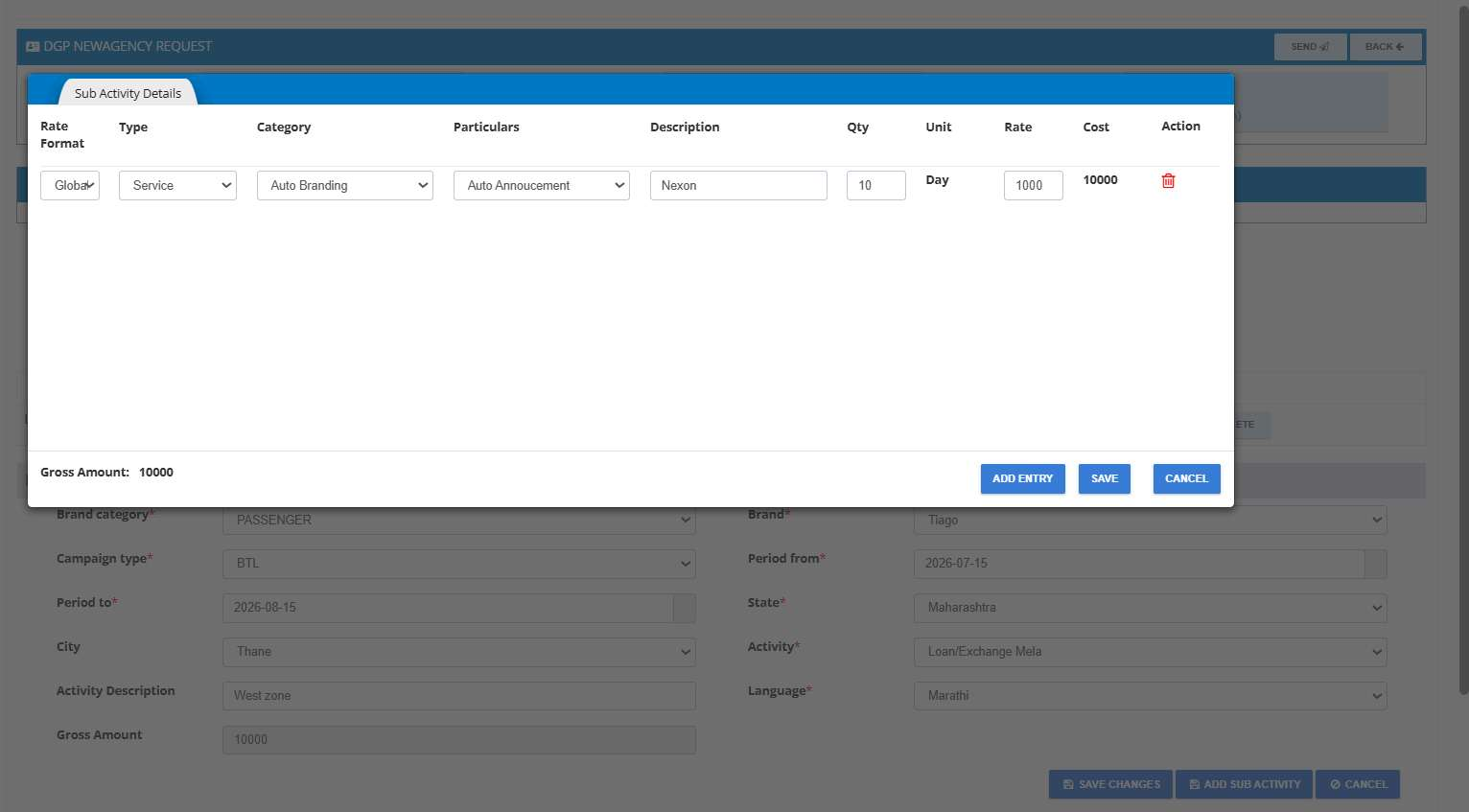
- Save the changes. Use 'New Entry' to add multiple sub-activities.
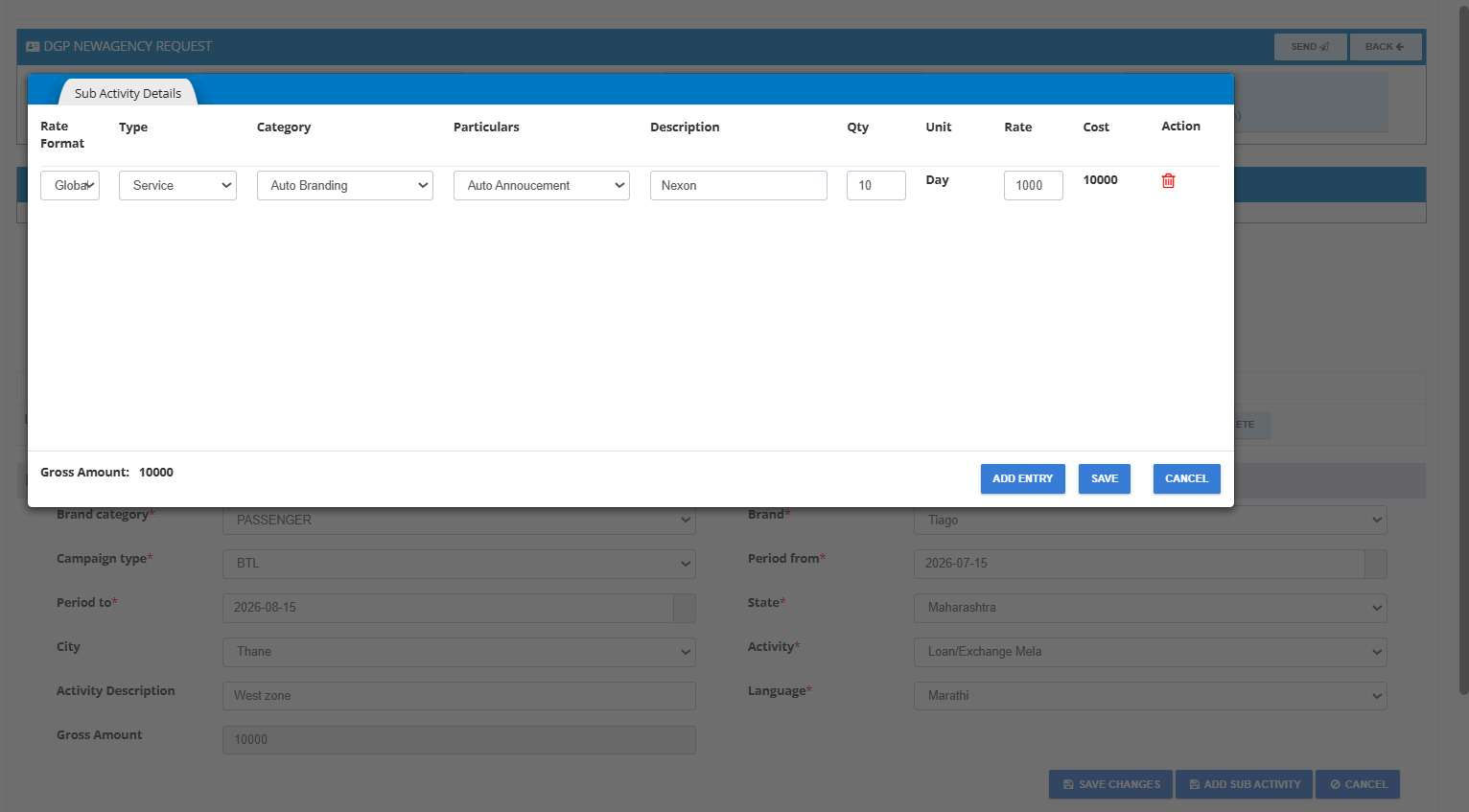
- Save first, then add commission, taxes (if applicable), and advance payment (if agreed).
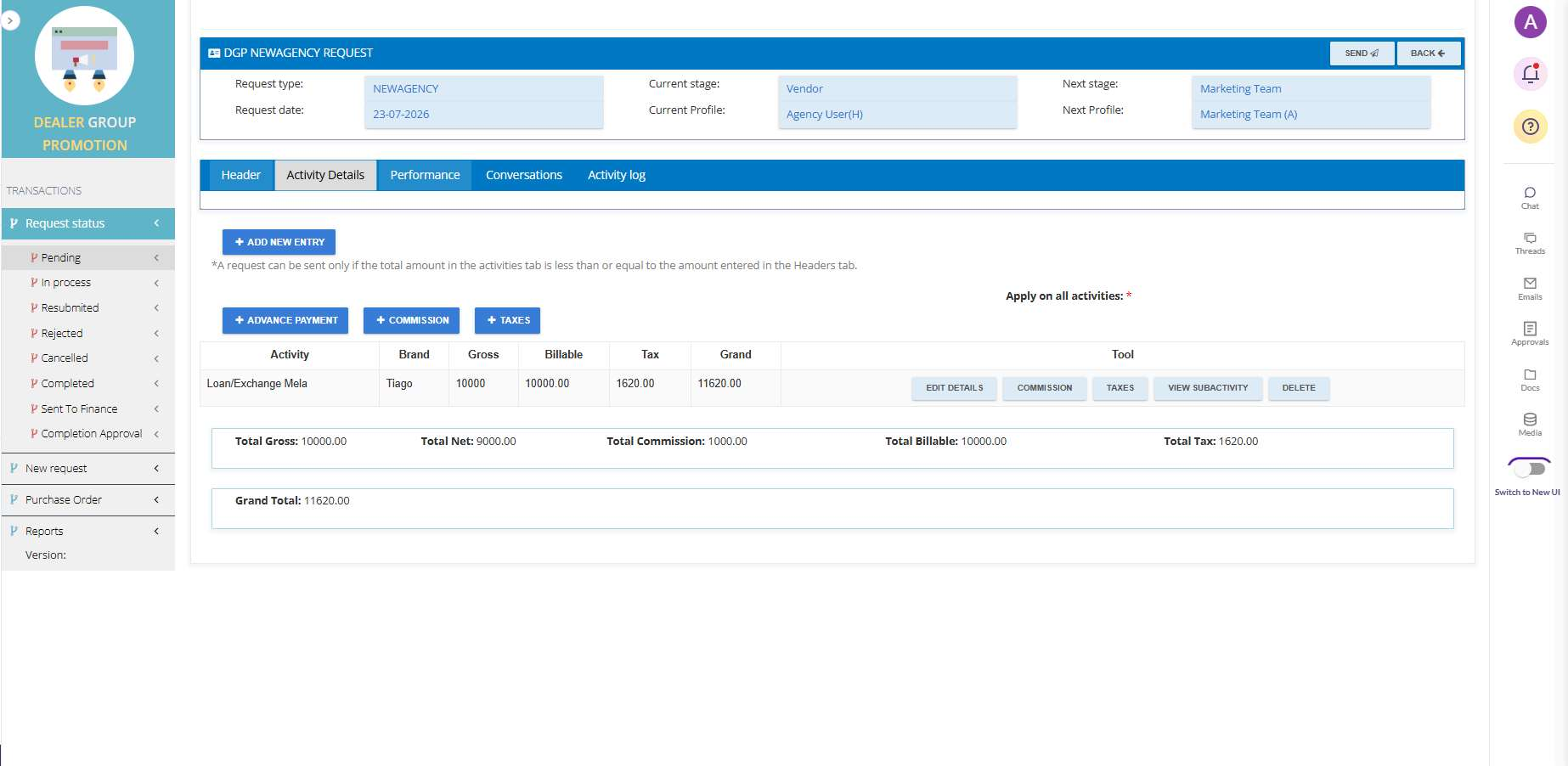
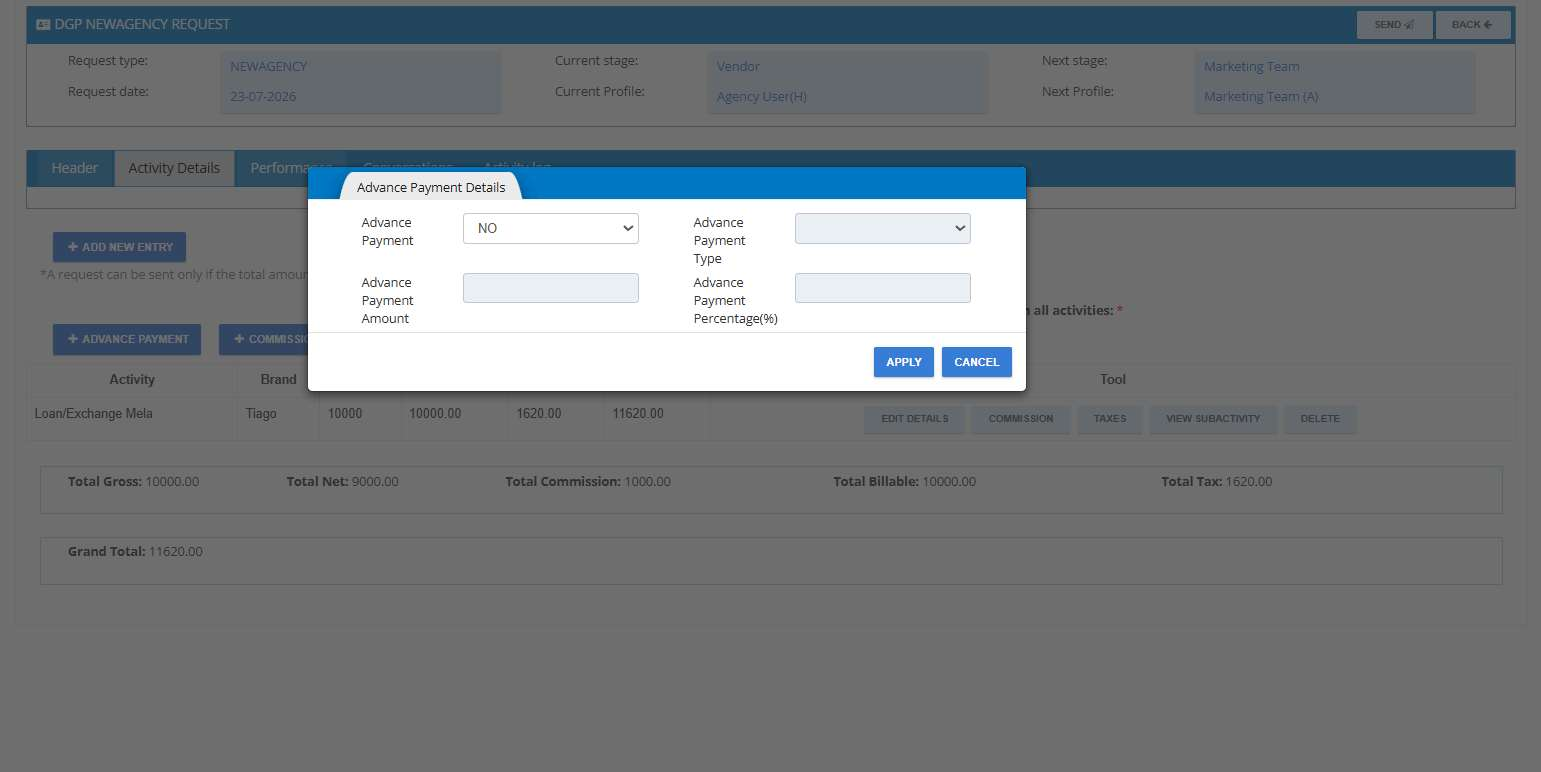
- Click '+ Advance Payment' and fill in the details if advance payment is agreed, or skip this step.
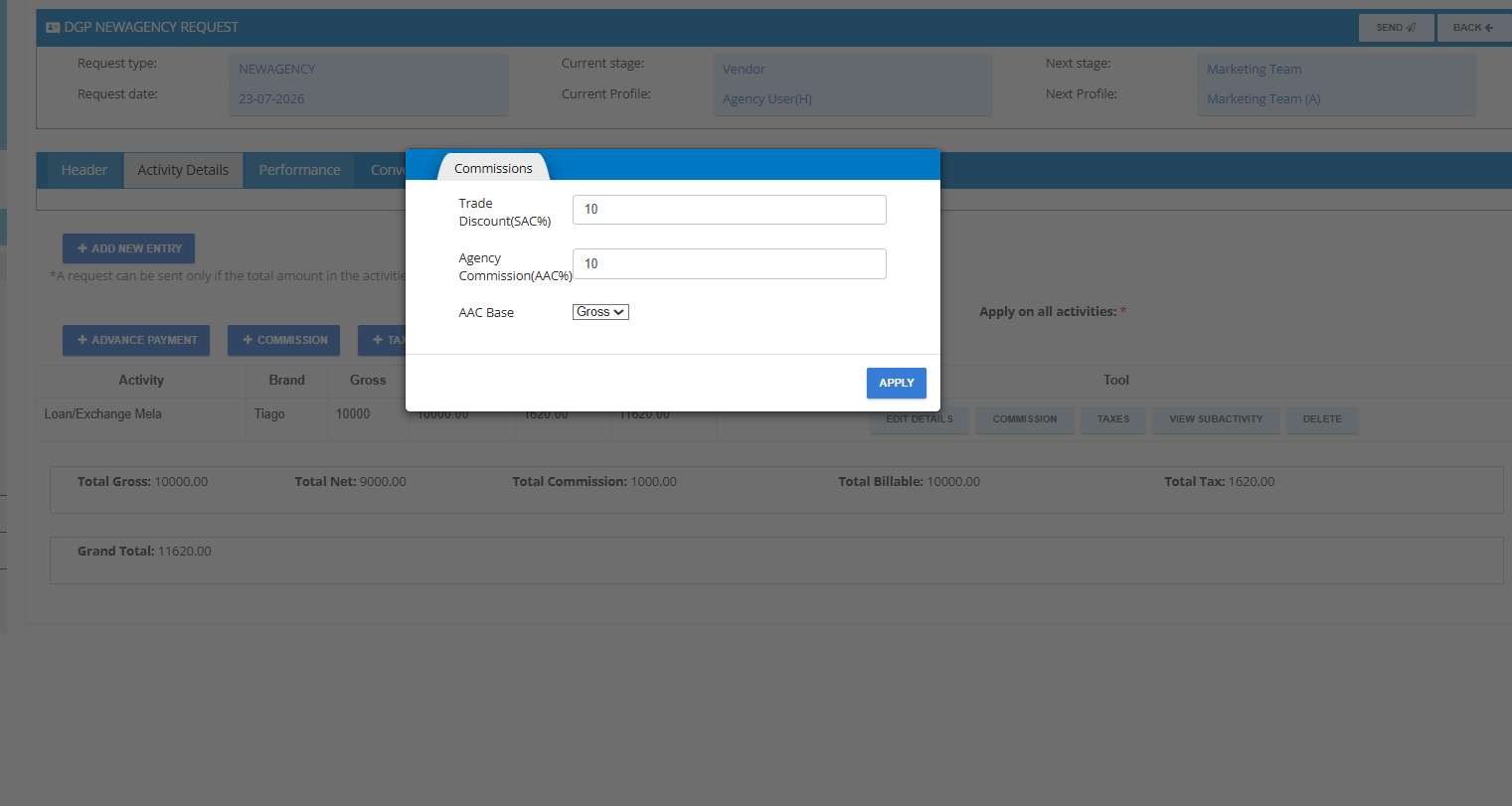
- Provide commission details, if applicable, and click 'Apply'.
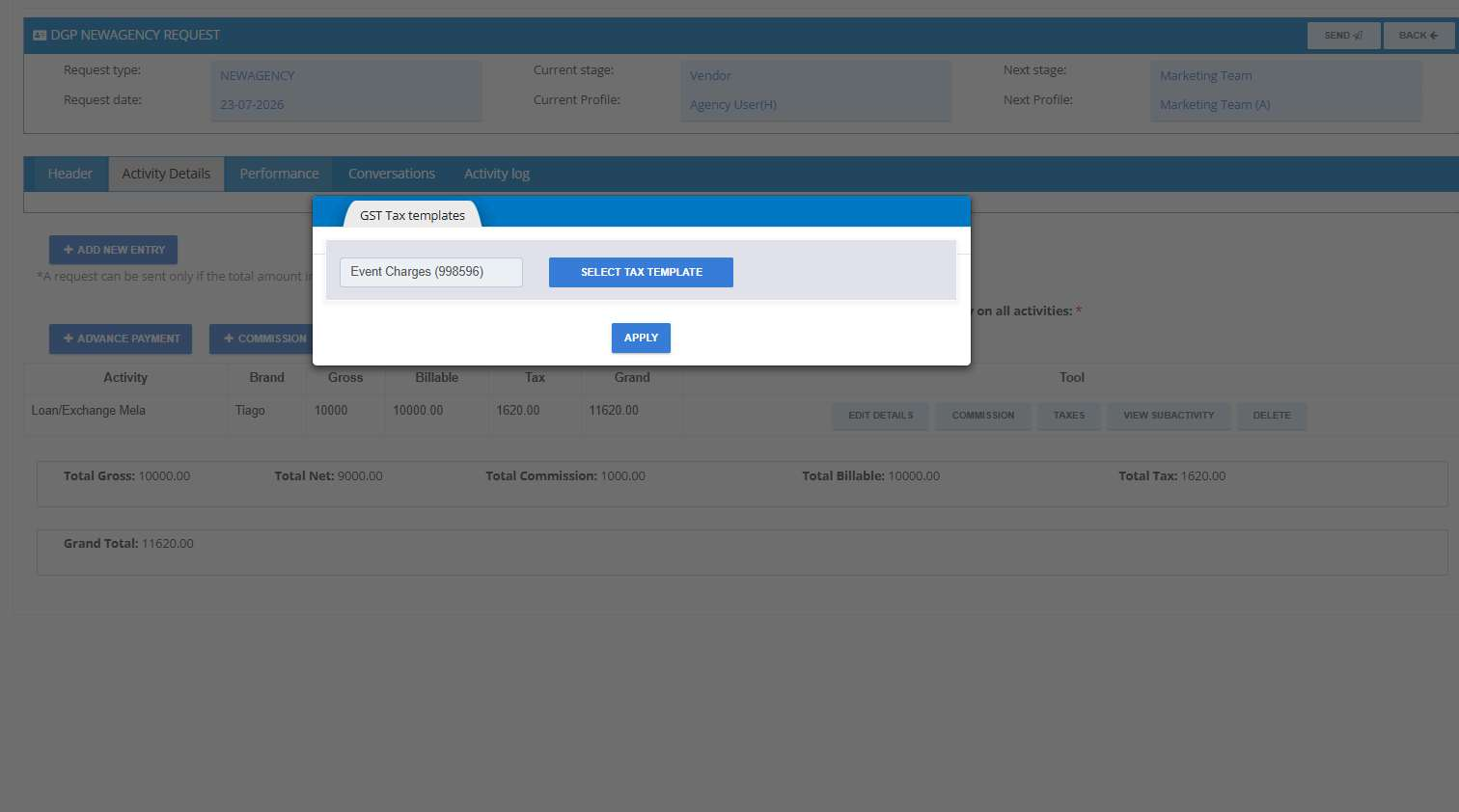
- For taxes, click '+ Taxes', select the applicable tax template, and click 'Apply'.
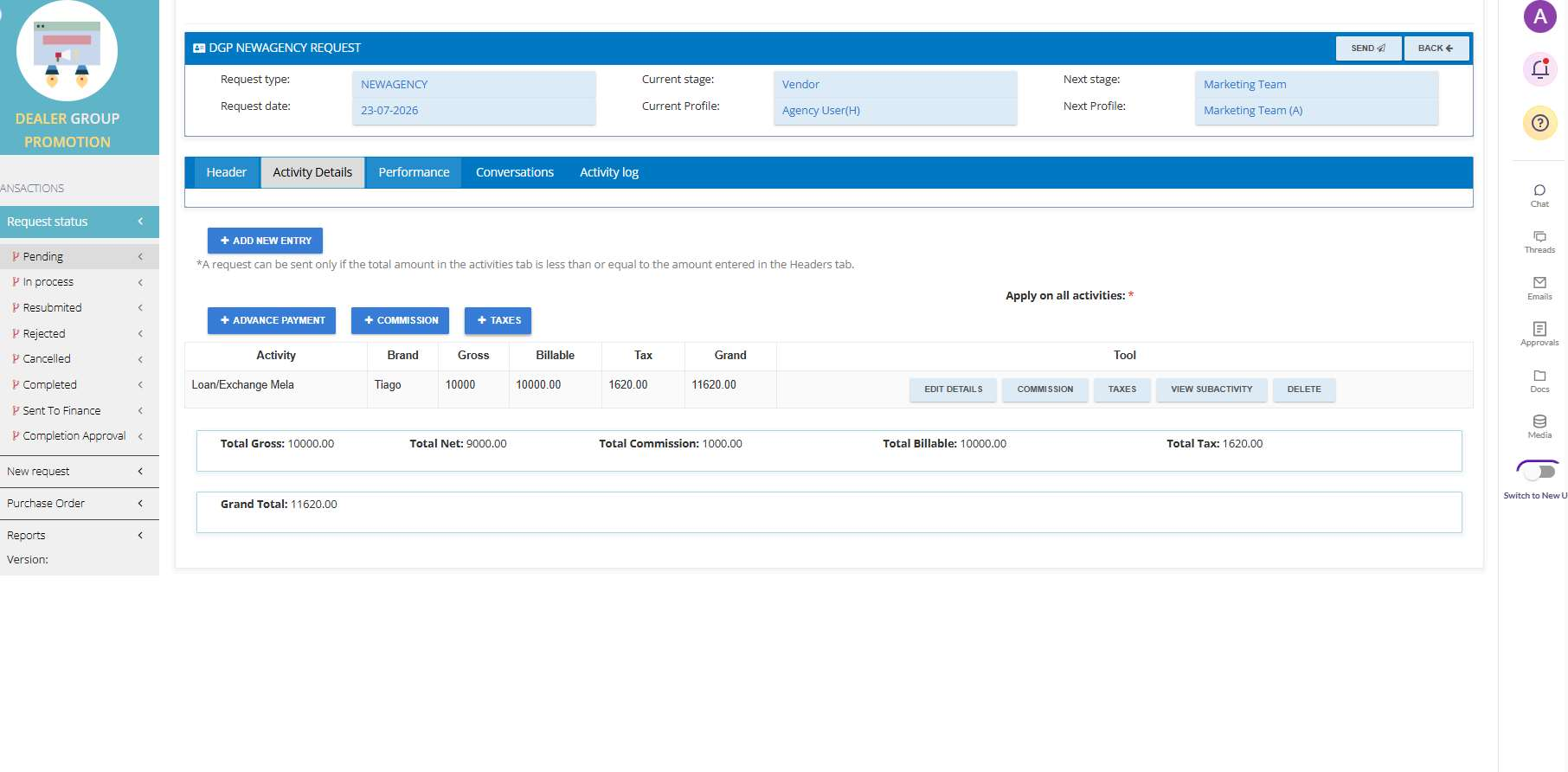
- Review all activity details once all inputs are completed.
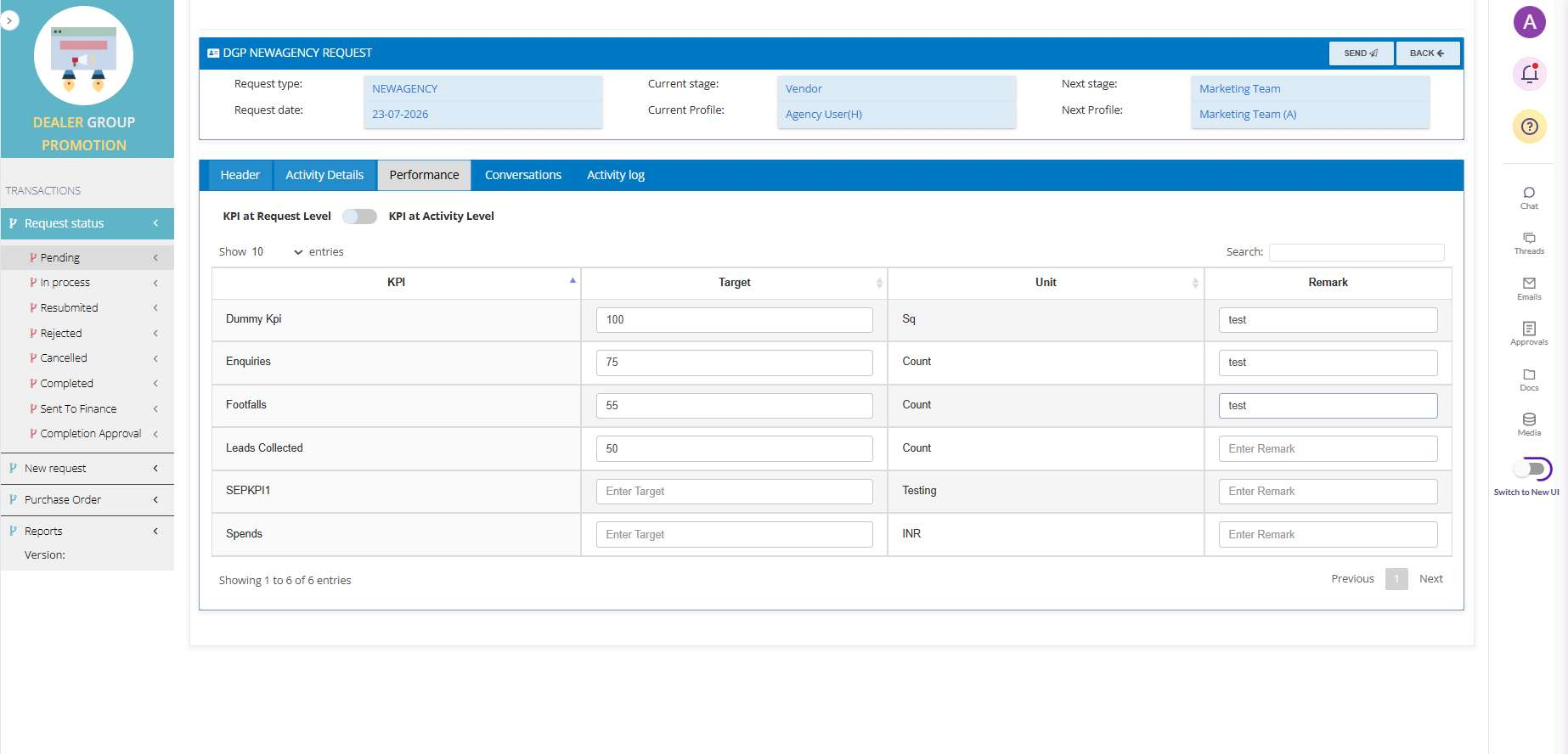
- Add KPI/performance details under the 'Performance' section as per the plan.
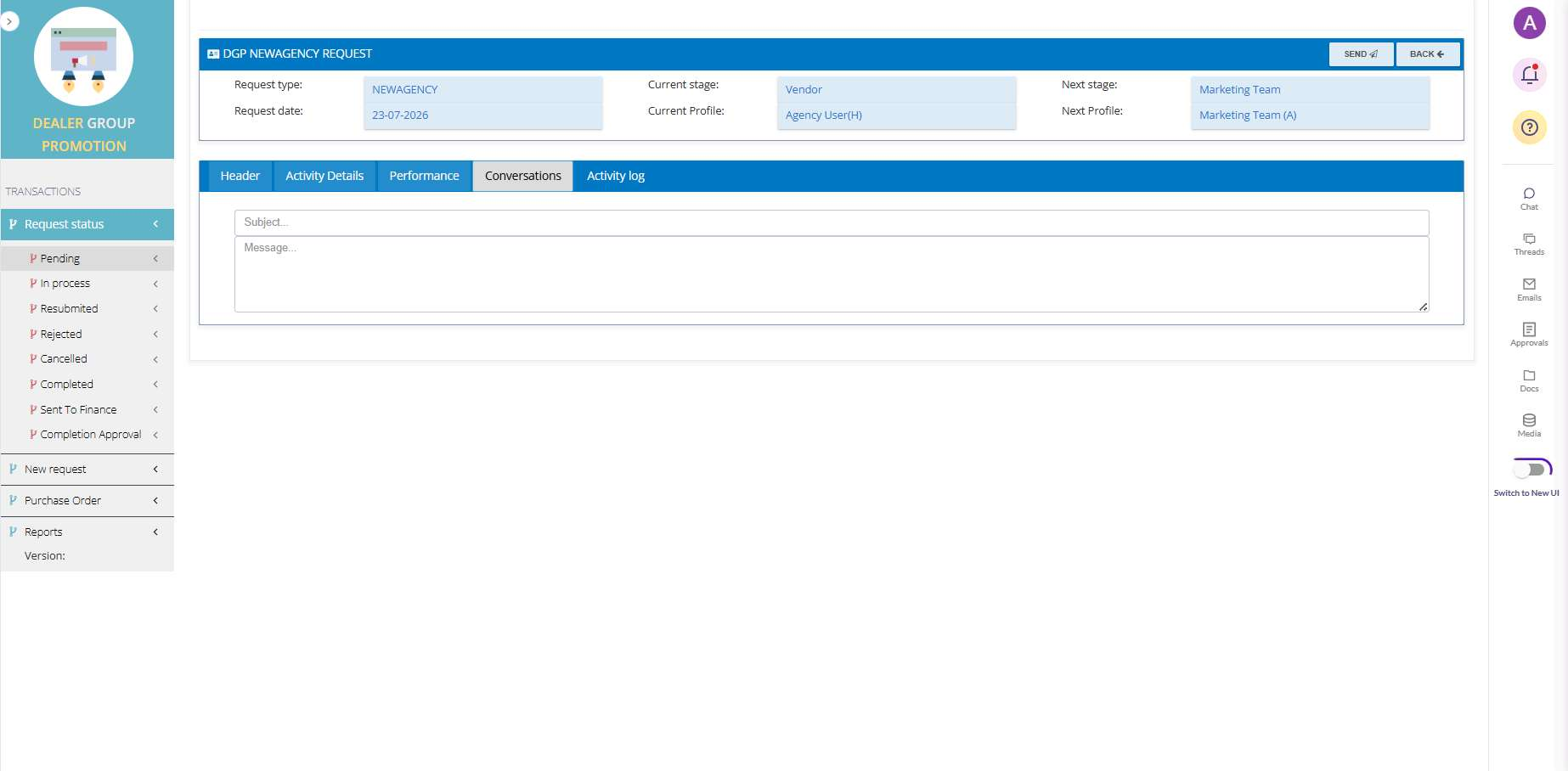
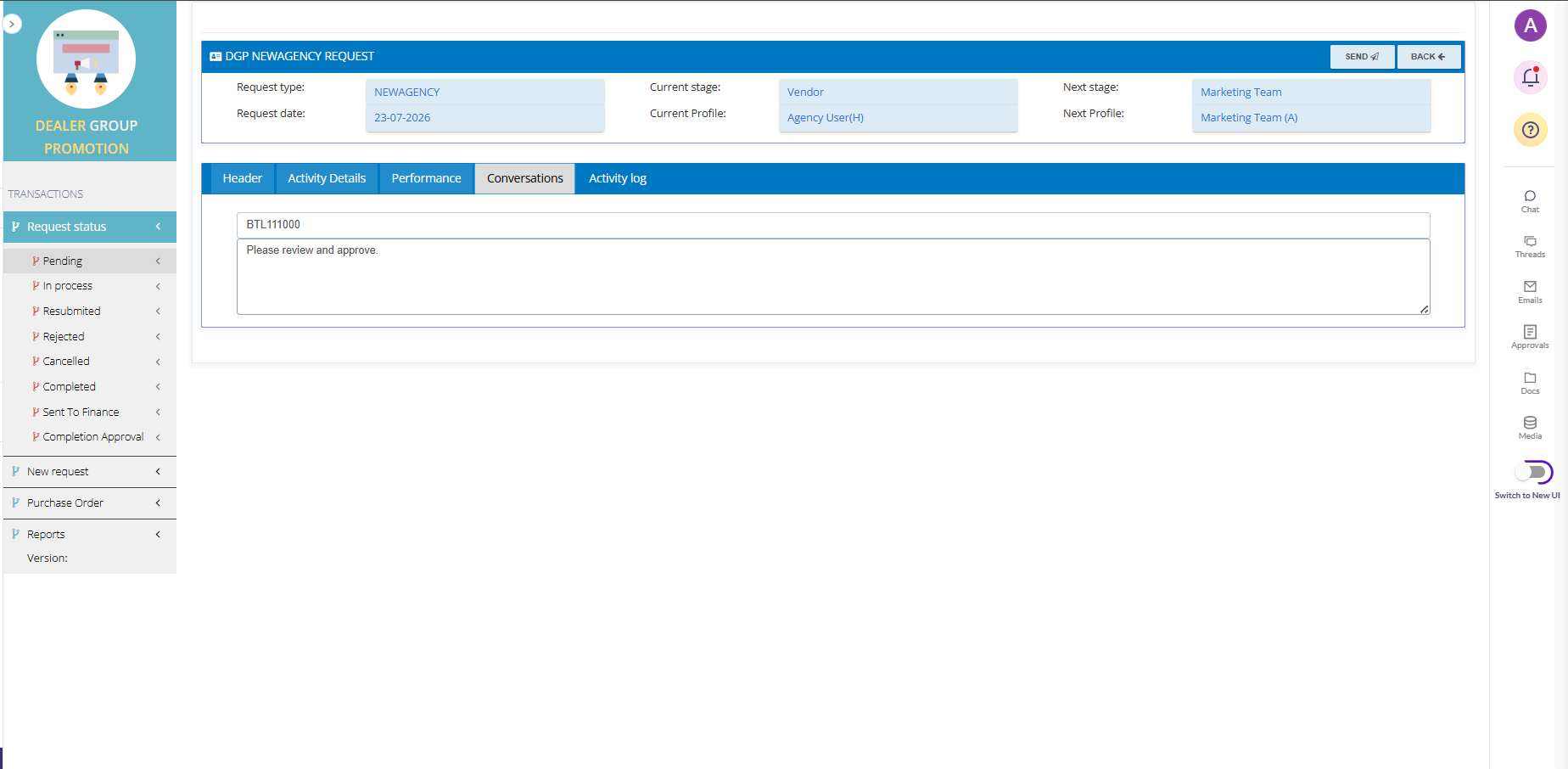
- Use the 'Conversations' tab to add remarks for the client — visible to all verifiers and approvers.
- Once all details are filled in, click 'Send' to submit for approval/verification.
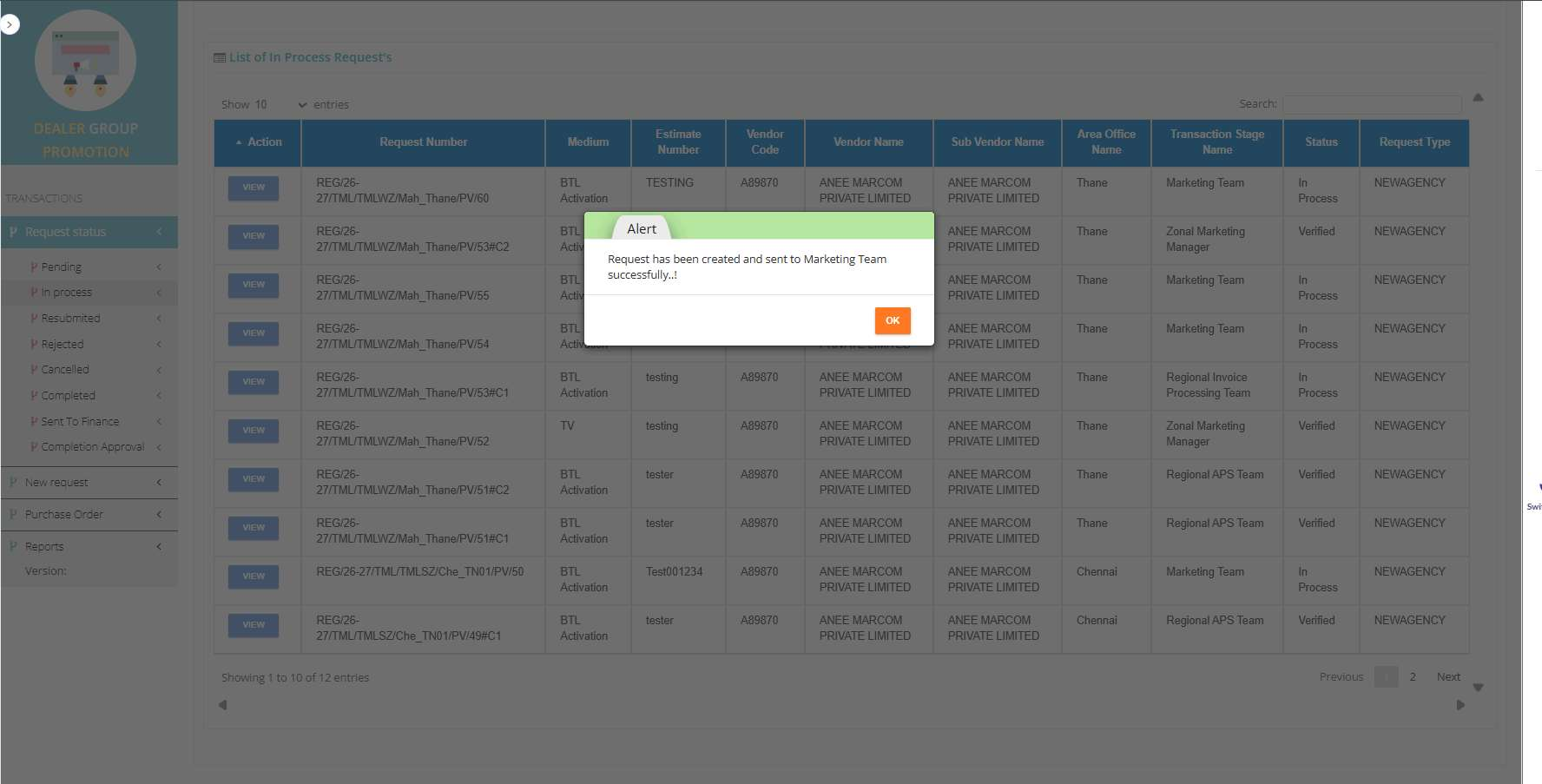
- A success message confirms submission, and the next verifier/approver is notified by email.
Was this article helpful?
That’s Great!
Thank you for your feedback
Sorry! We couldn't be helpful
Thank you for your feedback
Feedback sent
We appreciate your effort and will try to fix the article